
1Upload your audio
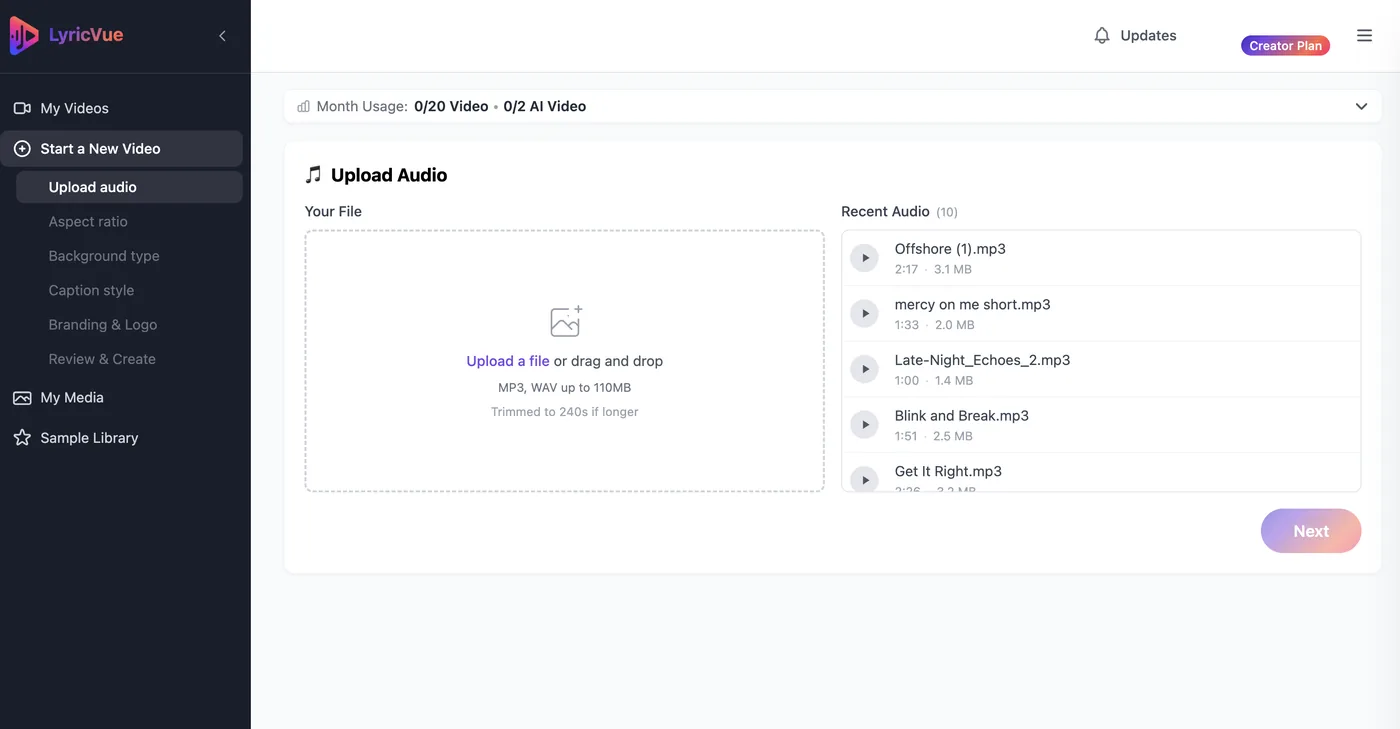
Sign in, start a new video and upload your MP3 or WAV on the Upload Audio step. LyricVue transcribes your lyrics from the audio, and Auto Prompt draws on them later.
By LyricVue · Updated
Quick answer
Upload your song to LyricVue, choose your aspect ratio, then on the Background step open Use AI. Choose Auto Prompt to have the image created from your lyrics, or My Prompt to describe the scene yourself. Pick a caption style and press Create Video. AI image backgrounds are available on every plan.
AI-generated images are available on every plan. AI-generated video backgrounds (short moving clips) are limited: Creator includes 2 a month, Studio 4 and Director 10, and extra ones can be bought as a one-time credit.
Sign in, start a new video and upload your MP3 or WAV on the Upload Audio step. LyricVue transcribes your lyrics from the audio, and Auto Prompt draws on them later.
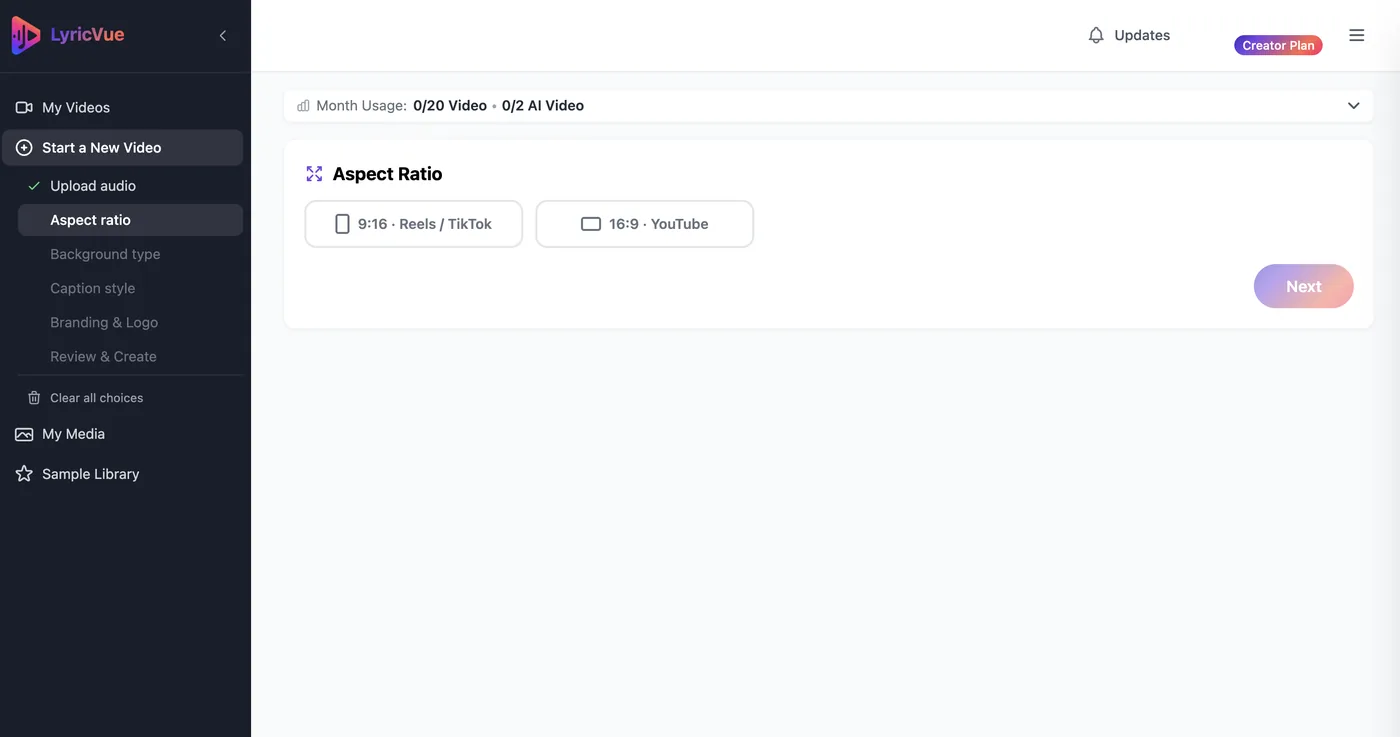
Select 9:16 for TikTok, Reels and Shorts, or 16:9 for YouTube.
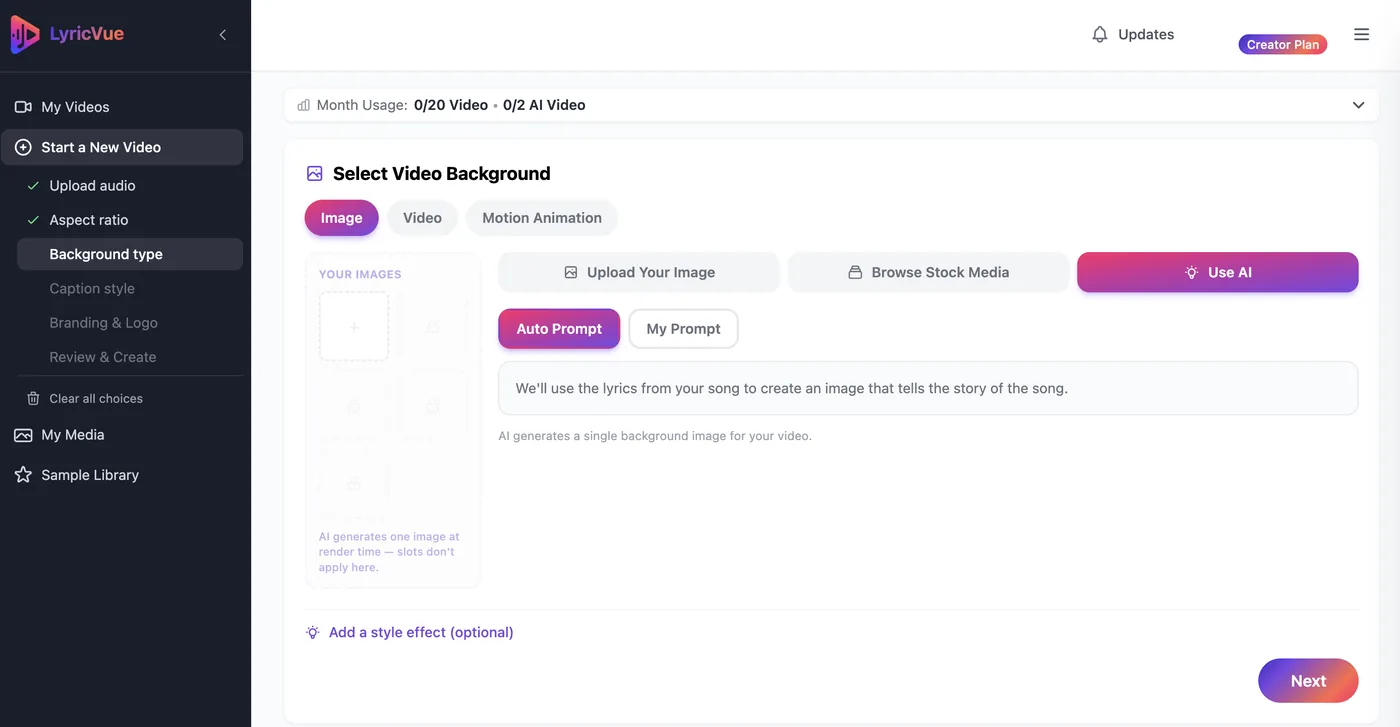
On the Background step, make sure the Image tab is selected and choose Use AI, next to Upload Your Image and Browse Stock Media.
You then choose between two modes: Auto Prompt and My Prompt.
Auto Prompt (hands-off): LyricVue reads your lyrics and writes the image prompt for you, so the picture reflects what the song is about. You do not have to type anything.
My Prompt (full control): describe the picture you want in your own words. For example: a lone figure walking through neon-lit rain at night, city lights reflecting on the pavement. Prompts can be up to 750 characters.
Want movement instead of a still picture? Open the Video tab and choose Use AI there. AI video backgrounds are short clips that loop to fill your song, and they are limited per plan (see the note above).
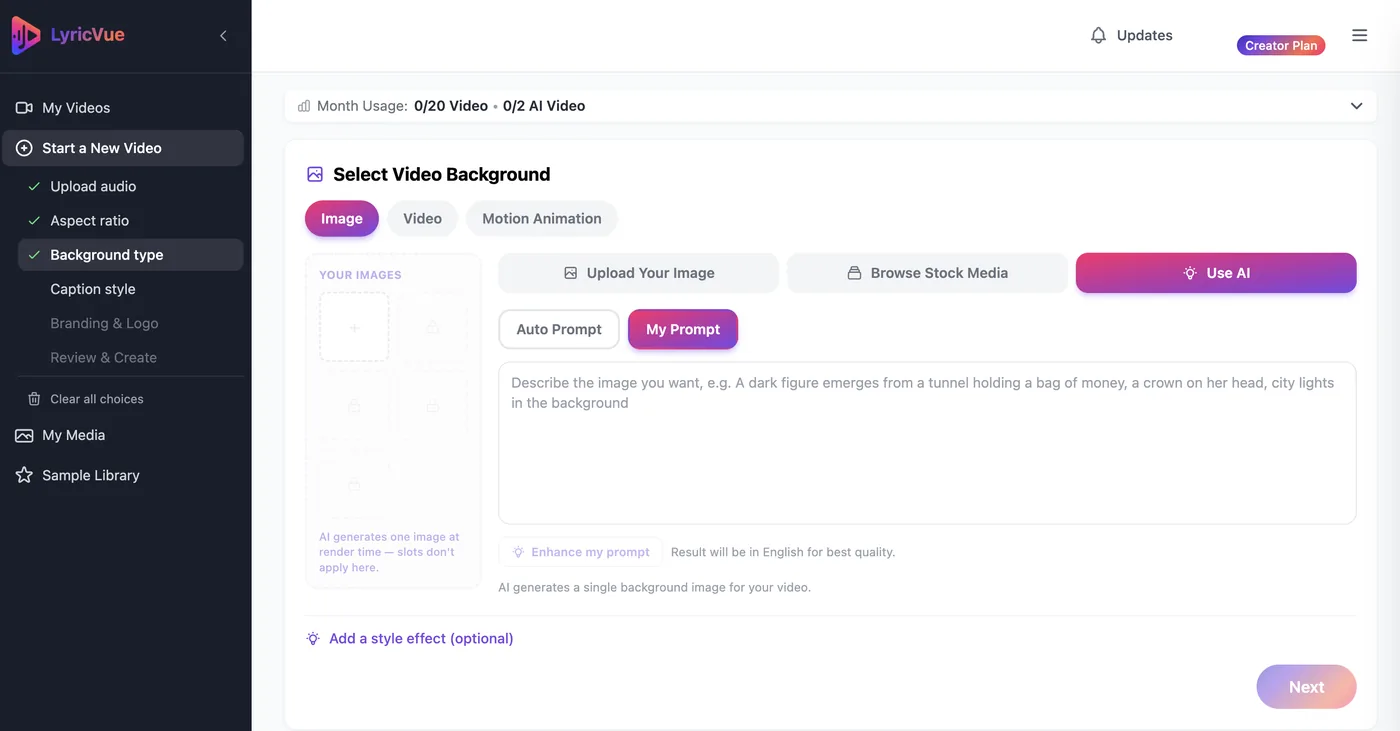
Tip: Describe a subject, a place, a mood and a light source. "A lighthouse on a stormy coast at dusk, moody blue tones" gives the AI far more to work with than "a nice scene".
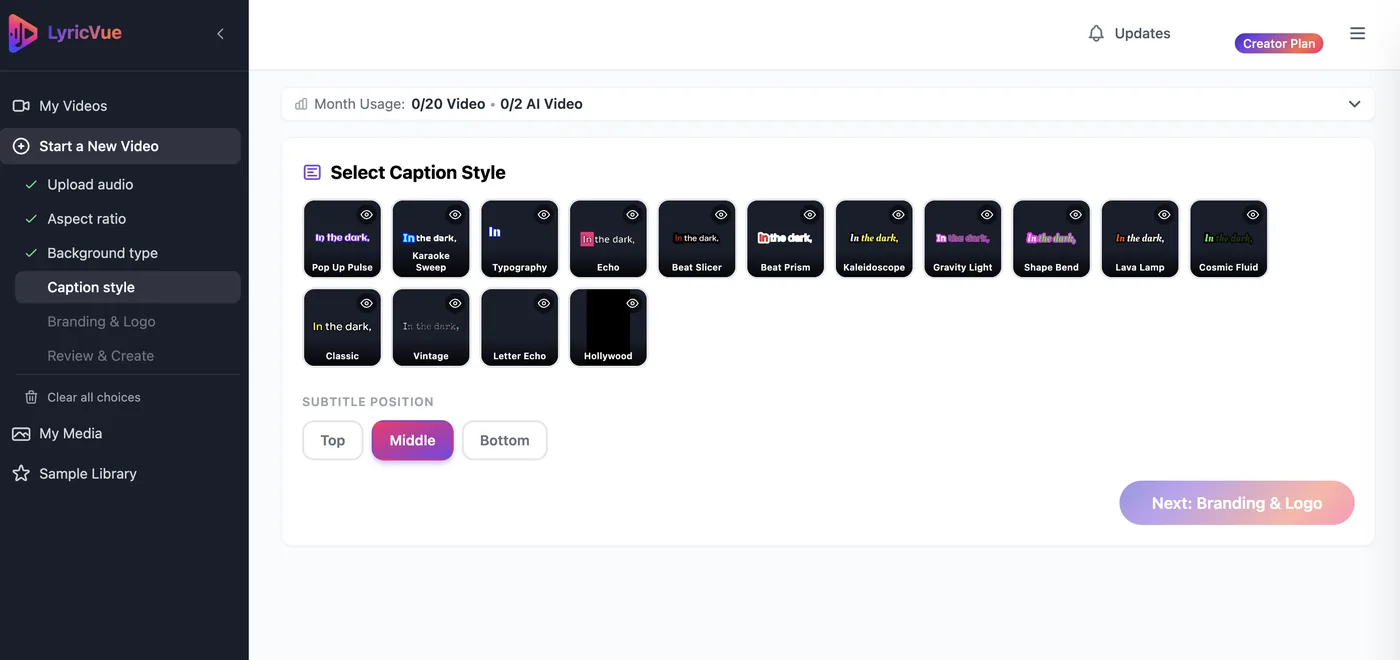
On the Caption Style step, choose how your lyrics animate and where they sit: Top, Middle or Bottom.
Generated images can be dramatic, so check the preview and pick a style that stays readable on top of your scene.
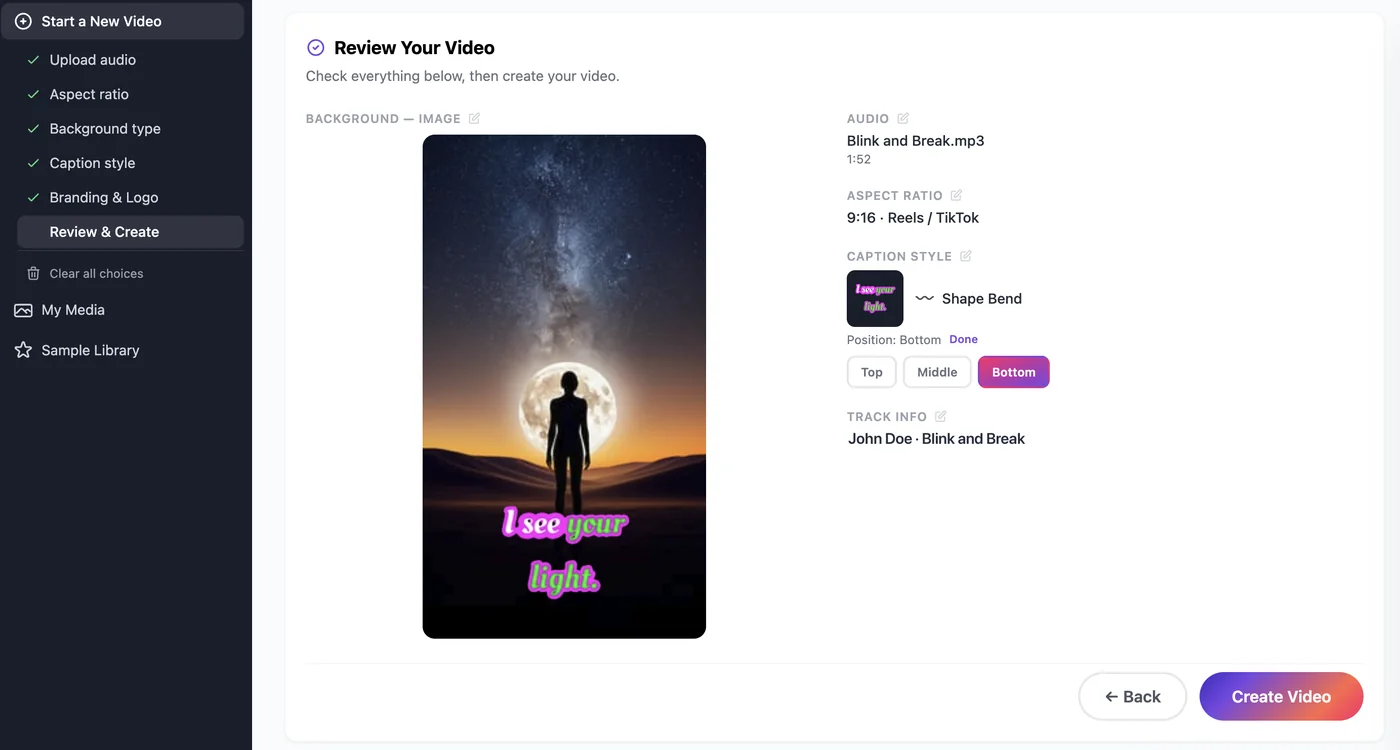
The Review & Create summary shows your AI background choice. Press Create Video. LyricVue generates the visual, syncs the lyrics and renders the MP4, usually within a few minutes.
If you are not happy with the picture, make another video with a revised prompt or switch to a stock or uploaded image.
Upload a song and choose Use AI. Three videos free.
No credit card required