How to Make a Lyric Video With Your Own Image or Album Art

By LyricVue · Updated

Quick answer

Upload your song to LyricVue, choose 9:16 or 16:9, then on the Background step open the Image tab and choose Upload Your Image. Select your photo or album art, pick a caption style and position, and press Create Video. LyricVue adds synced lyrics over your image automatically.

What you need

  • ✓An MP3 or WAV file of your song
  • ✓Your image: album art, a photo or a graphic, in the same orientation as your video if possible
  • ✓A LyricVue Creator plan or a pay-as-you-go credit (uploading your own image is not available on the free plan)

Uploading your own image is available on the Creator plan and above, or with a pay-as-you-go video credit. Creator allows one image per video; Studio and Director allow up to five images. Free plan users can still use AI-generated or stock backgrounds.

1Upload your audio

Sign in, start a new video and upload your MP3 or WAV on the Upload Audio step.

If your MP3 has cover art embedded in its file, LyricVue picks it up automatically and places it as your background image. You can keep it or replace it in step 3.
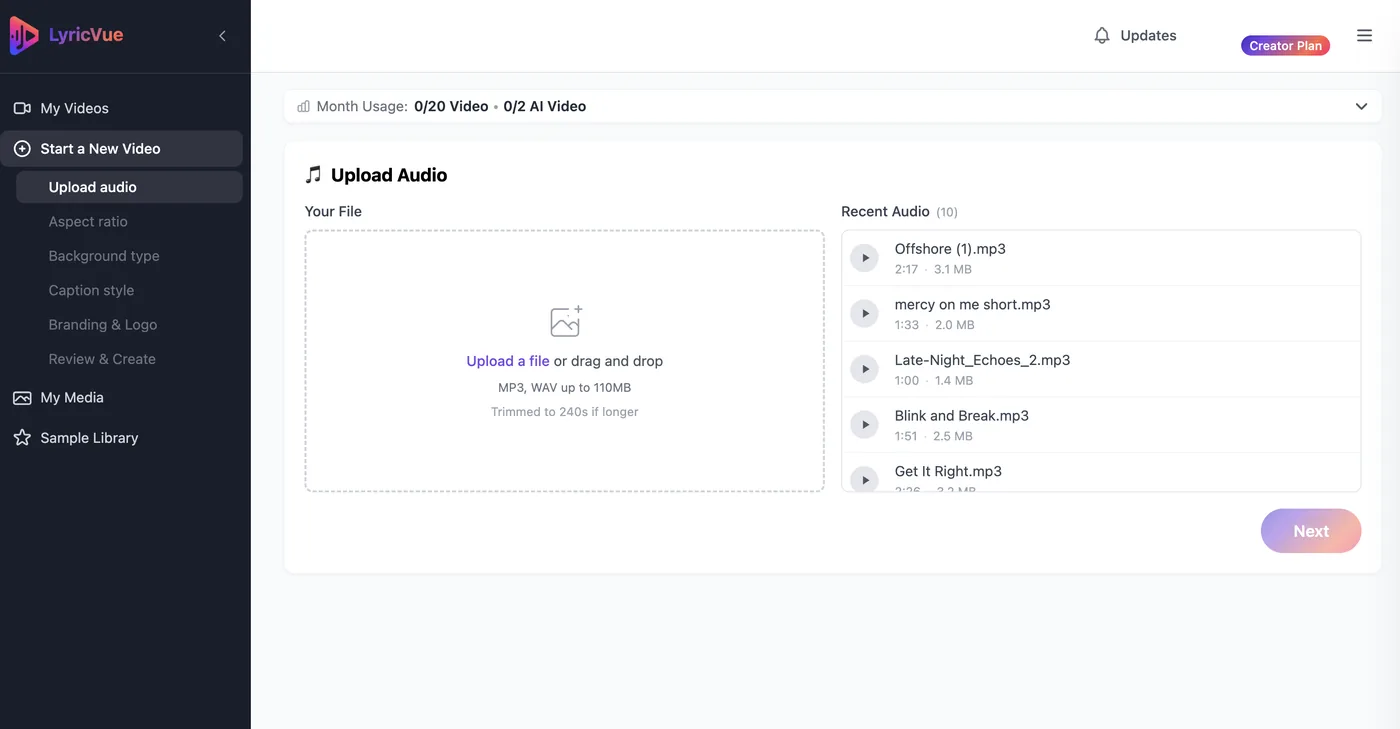
LyricVue Upload Audio step with a drag-and-drop box and a list of recent audio files
The Upload Audio step: drag in an MP3 or WAV, or pick a recent file. The limit shown here is for a Creator plan; free videos are up to 2 minutes.

2Choose your aspect ratio

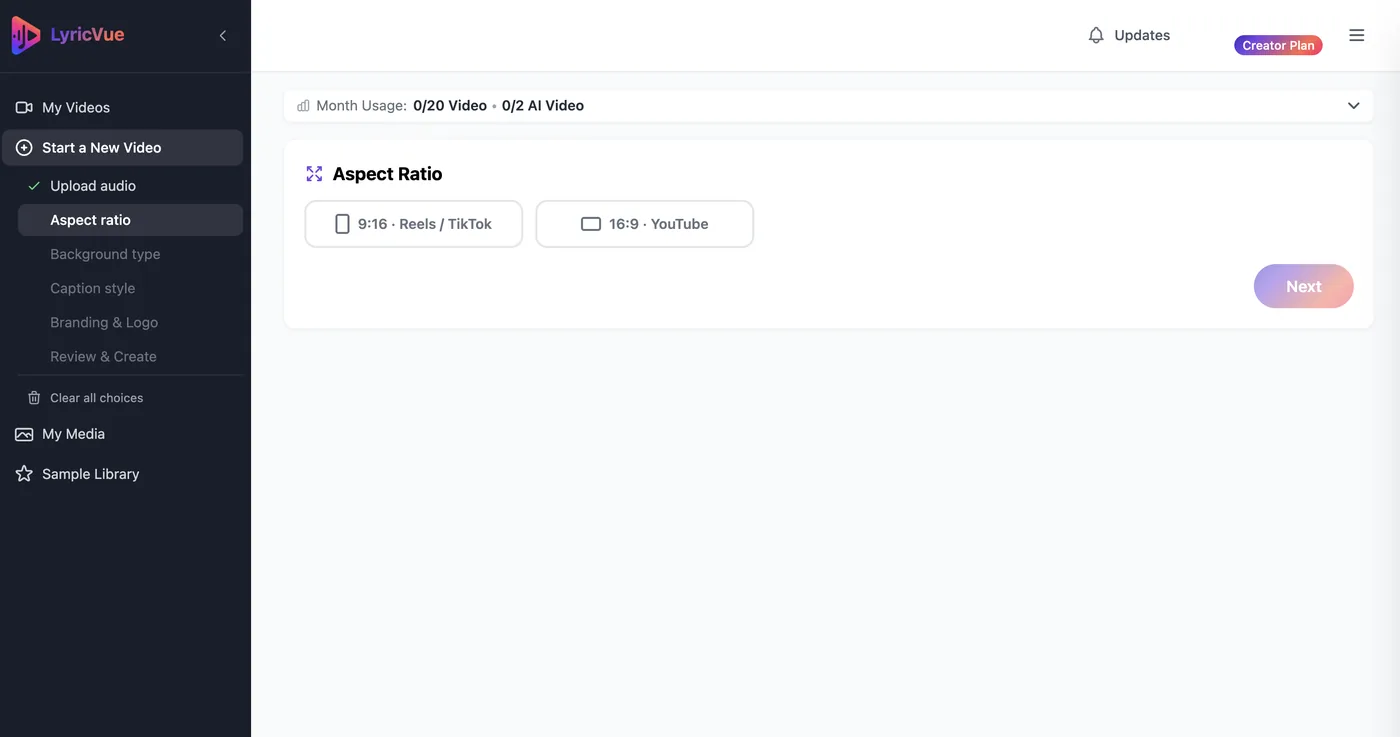
Select 9:16 for TikTok, Reels and Shorts, or 16:9 for YouTube.

Think about your image here. Square album art is cropped to fit a 9:16 or 16:9 frame, so pick the ratio that suits the picture and where you will post.

LyricVue Aspect Ratio step with 9:16 Reels / TikTok and 16:9 YouTube options
The Aspect Ratio step: 9:16 for Reels, TikTok and Shorts, or 16:9 for YouTube.

Tip: For a vertical video, an image that is taller than it is wide will fill the frame without losing its edges.

3Upload your image

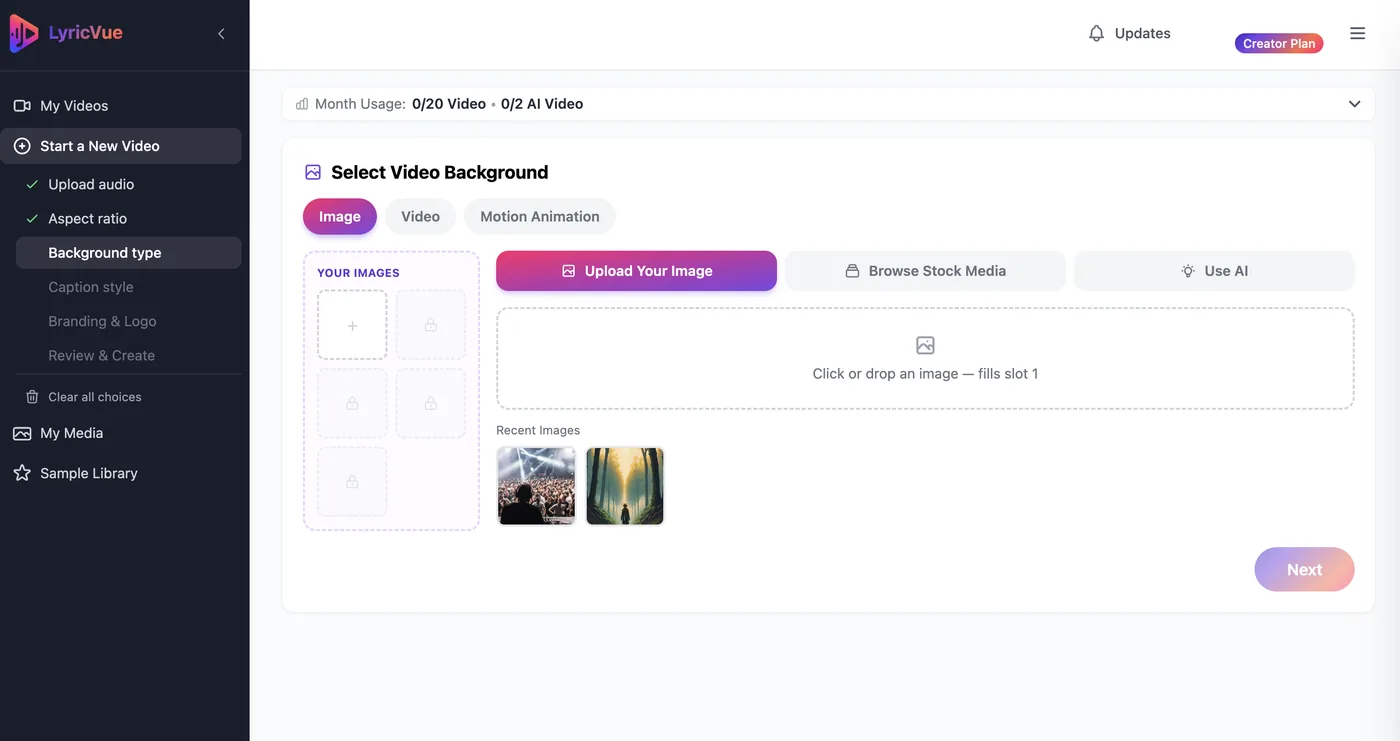
On the Background step, make sure the Image tab is selected and choose Upload Your Image. Pick the file from your computer.

LyricVue shows a preview. If the image ratio does not match your video format, you will see a warning that it will be cropped, so you can swap it for a better fit before you continue.

On Studio and Director plans you can add several images, for example a different picture for each part of the song.

LyricVue Background step with the Image tab and the Upload Your Image option selected
Background step, Image tab, Upload Your Image. Creator plans get one image slot; Studio and above get up to five.

Tip: Choose an image with some calm space where the lyrics will sit. Very busy pictures make captions harder to read.

4Select a caption style and position

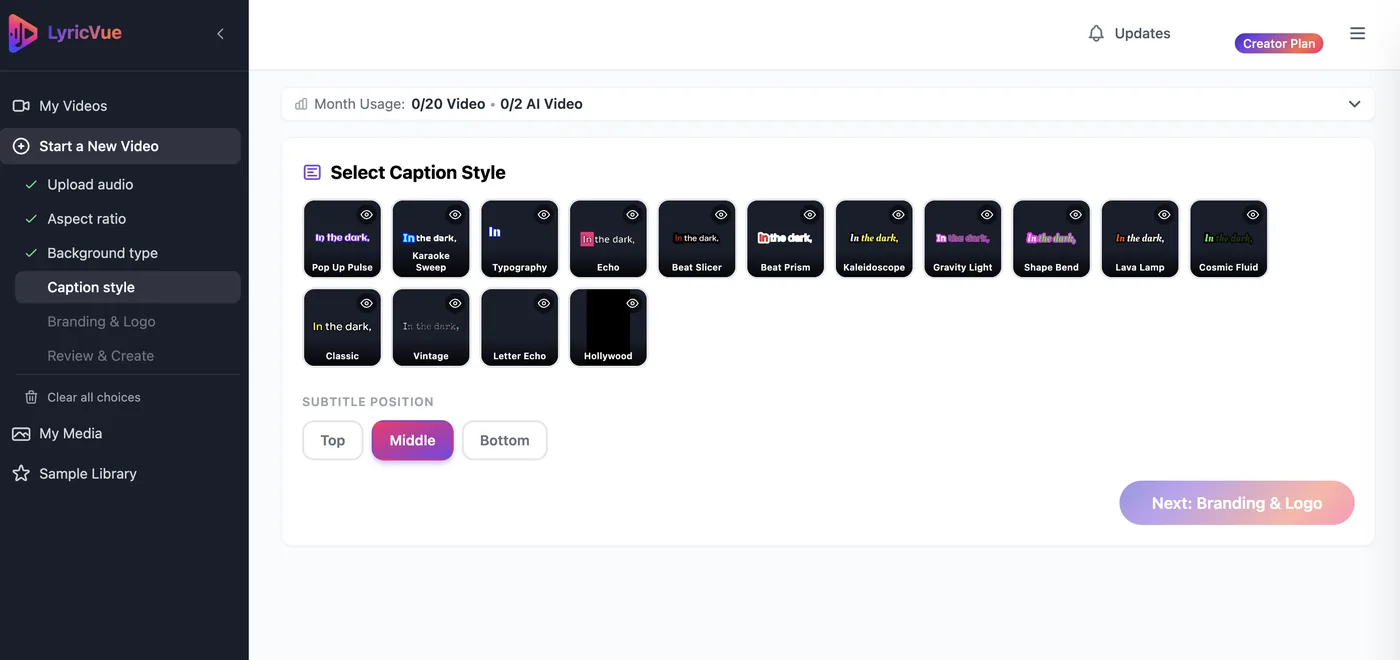
On the Caption Style step, choose how the lyrics animate and whether they appear at the top, in the middle or at the bottom of the frame.

Pick a style with good contrast against your picture. On a dark image, bright text works well, and the preview shows you how it will look.

LyricVue Select Caption Style step with a grid of caption styles and Top, Middle and Bottom position buttons
The Caption Style step: pick a style, then choose Top, Middle or Bottom.

5Review and press Create Video

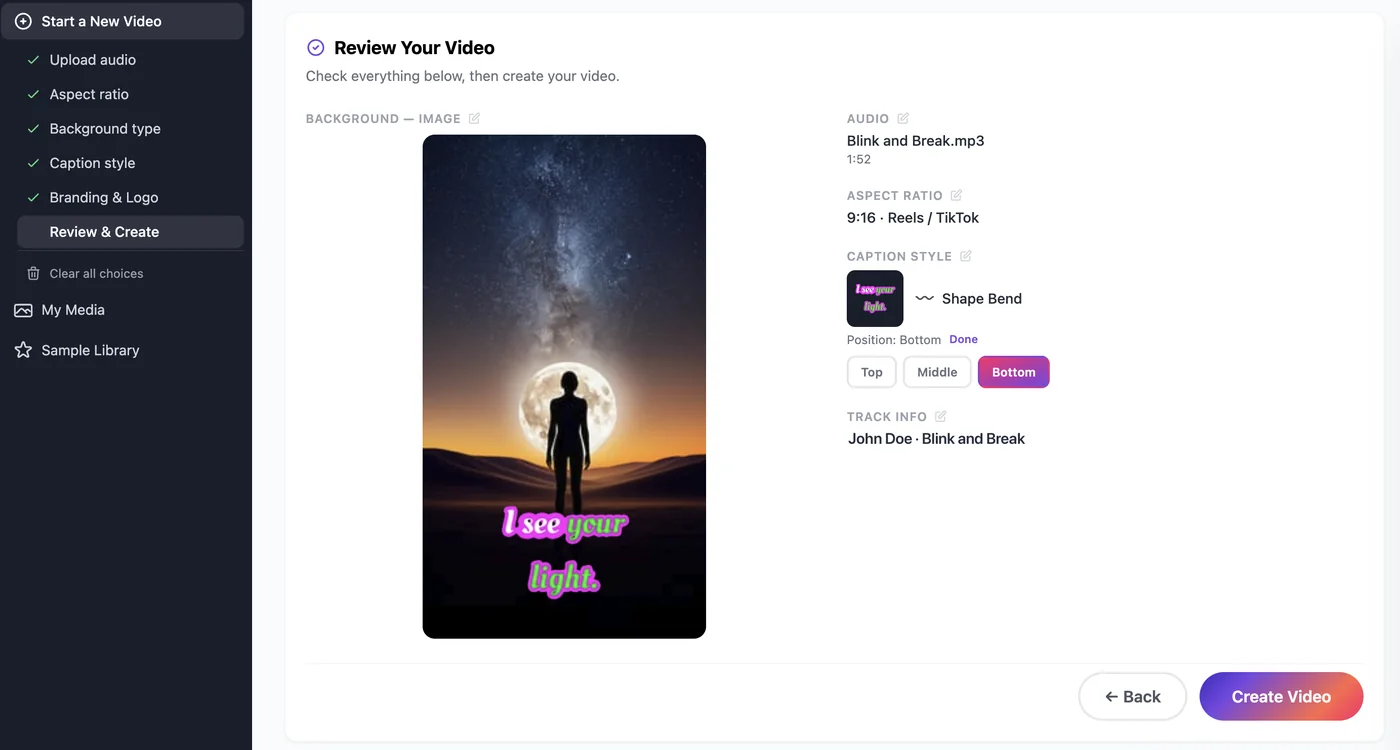
On the Review & Create step, check the summary and press Create Video. LyricVue transcribes the lyrics, syncs them to the beat and renders your video, usually within a few minutes.

Download the finished MP4 from My Videos and post it.

LyricVue Review Your Video step summarizing the audio, aspect ratio, caption style and background, with a Create Video button
Review & Create: check the summary, then press Create Video.

Frequently asked questions

Put Your Artwork Behind the Lyrics

Upload your song and your image and let LyricVue do the syncing.

No credit card required