
1Upload your audio
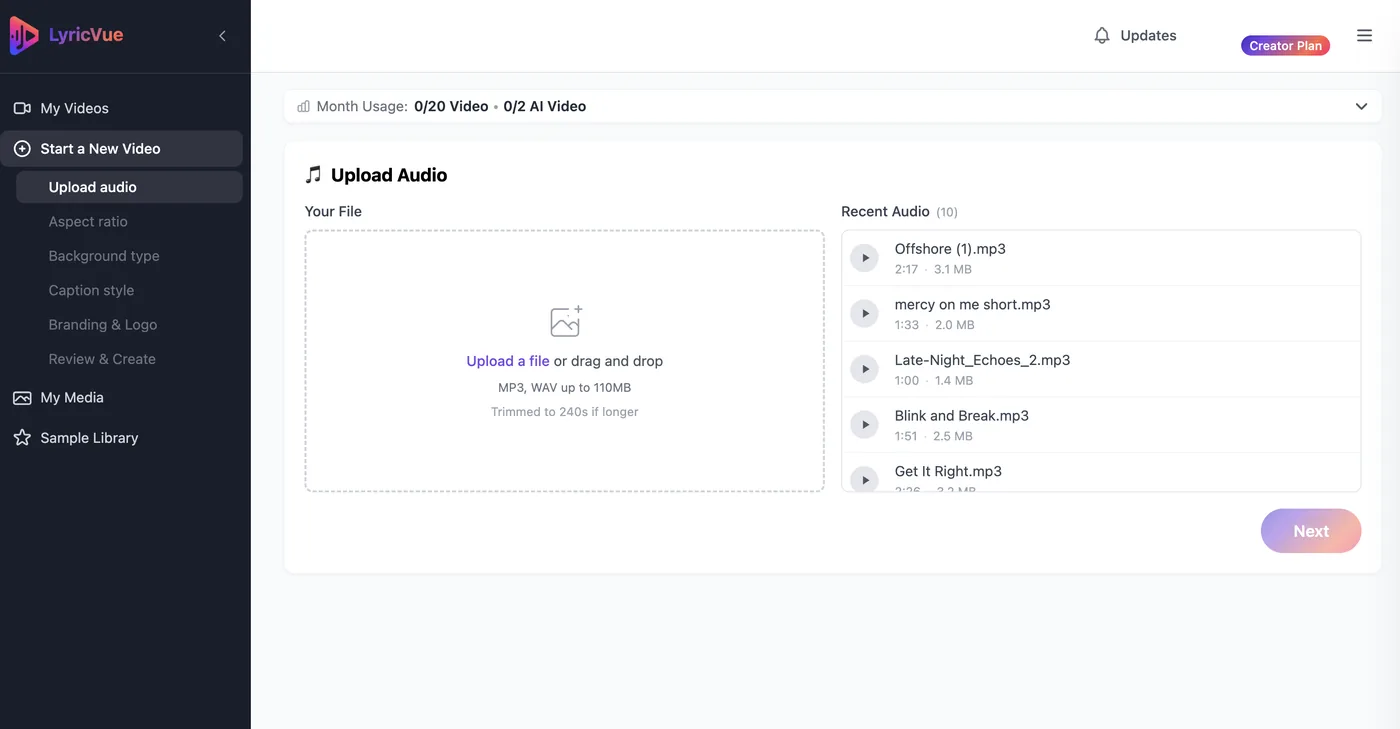
Sign in, start a new video and upload your MP3 or WAV on the Upload Audio step. LyricVue begins transcribing the vocals right away.
By LyricVue · Updated
Quick answer
Upload your song to LyricVue, choose your aspect ratio, then on the Background step choose Browse Stock Media under Image or Video. Search or browse by category, click the picture or clip you like, pick a caption style and press Create Video. No filming or design work is needed.
On the free plan you can pick from the first items of each category in the stock library, and the rest are shown locked. A Creator plan or a pay-as-you-go video credit unlocks the full library.
Sign in, start a new video and upload your MP3 or WAV on the Upload Audio step. LyricVue begins transcribing the vocals right away.
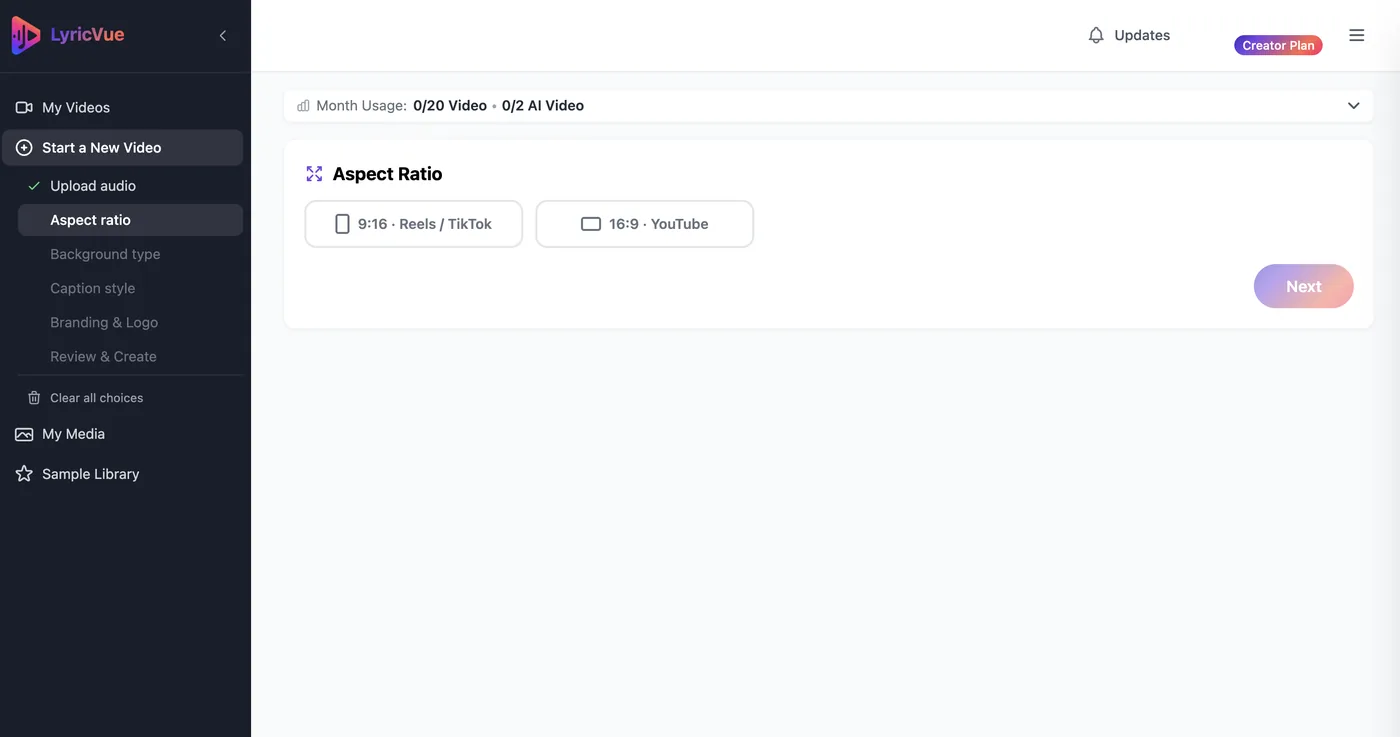
Select 9:16 for TikTok, Reels and Shorts, or 16:9 for YouTube.
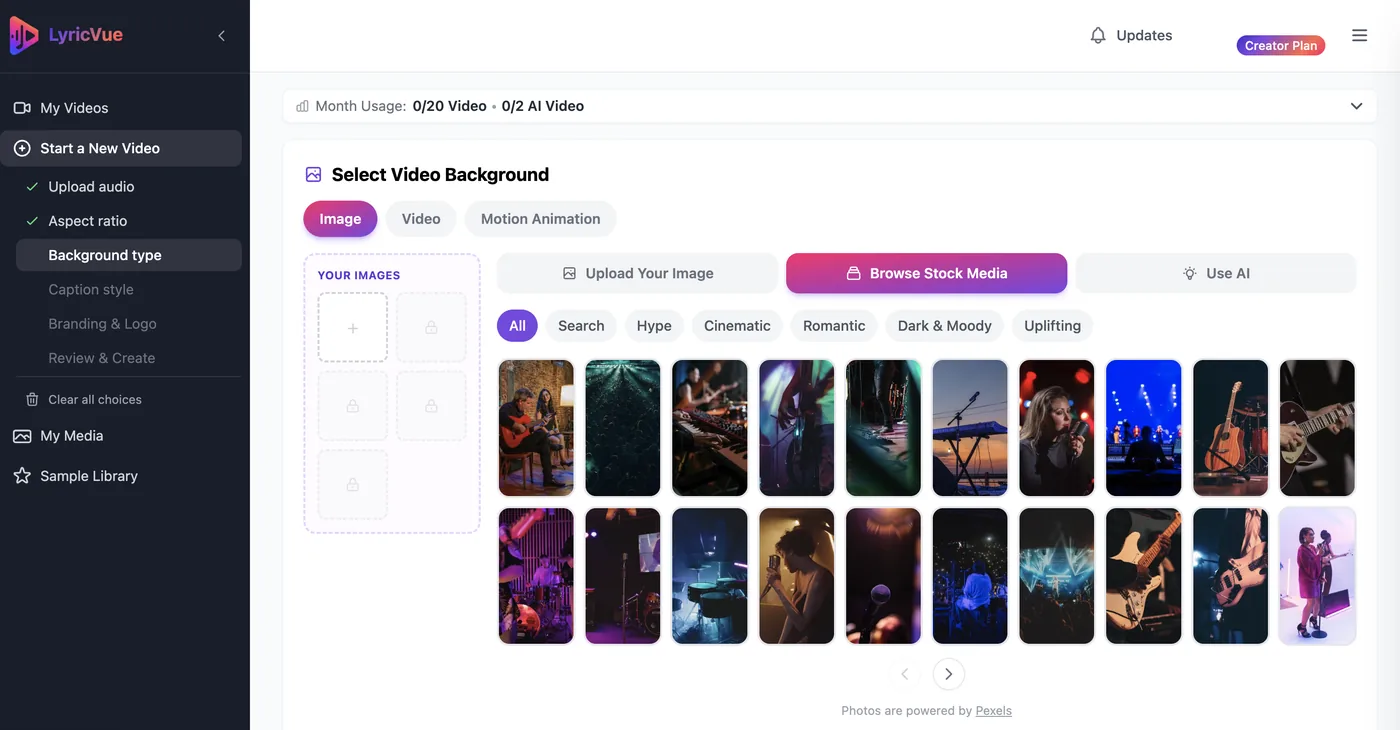
On the Background step, choose the Image tab for still pictures or the Video tab for moving clips. In either one, select Browse Stock Media.
Browse the categories or search for a keyword such as ocean, city night, forest or neon. Click a result to select it. The choice is added to your video and you can go back and change it any time before you create.
The Motion Animation tab is a third option: animated backgrounds that need no picture at all, including a Special group of bespoke animated designs.
Tip: Search for the feeling of the song, not the lyrics. "Rain on a window" suits a sad ballad better than a literal match to the words.
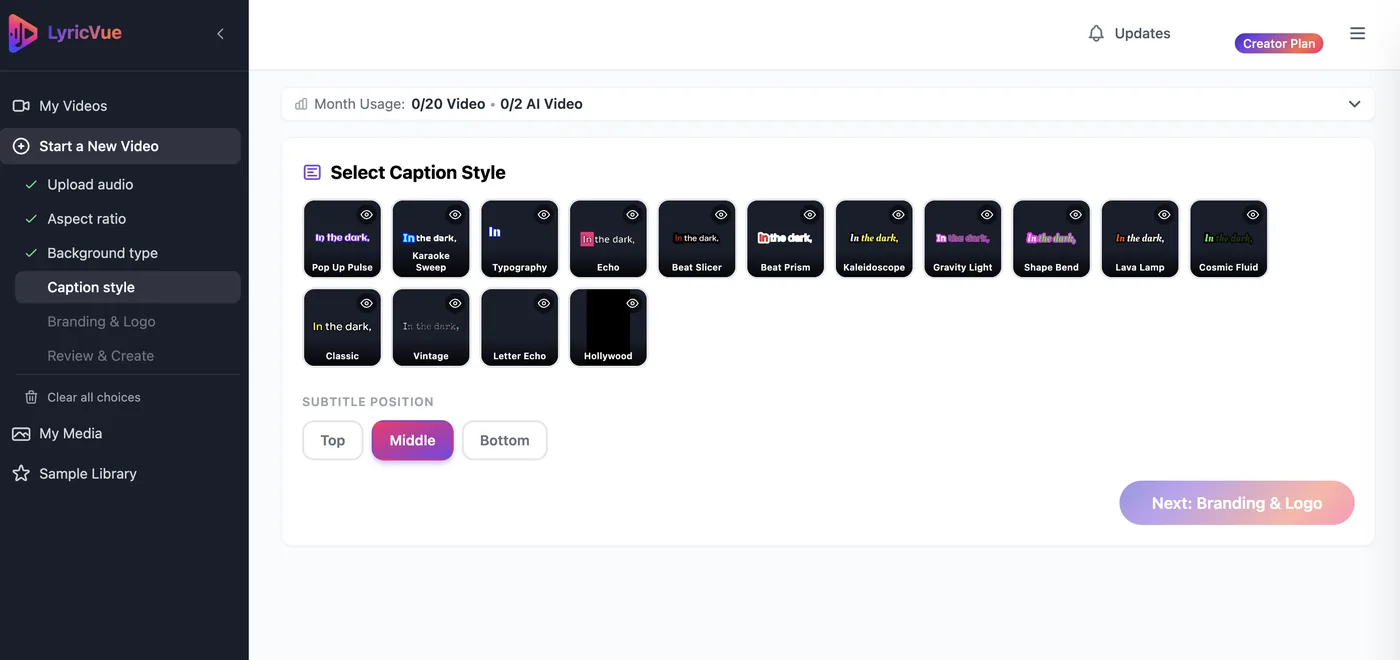
On the Caption Style step, pick a style and choose Top, Middle or Bottom for the lyrics.
Moving footage can be busy, so choose a style with a strong outline or contrast and check the preview before you continue.
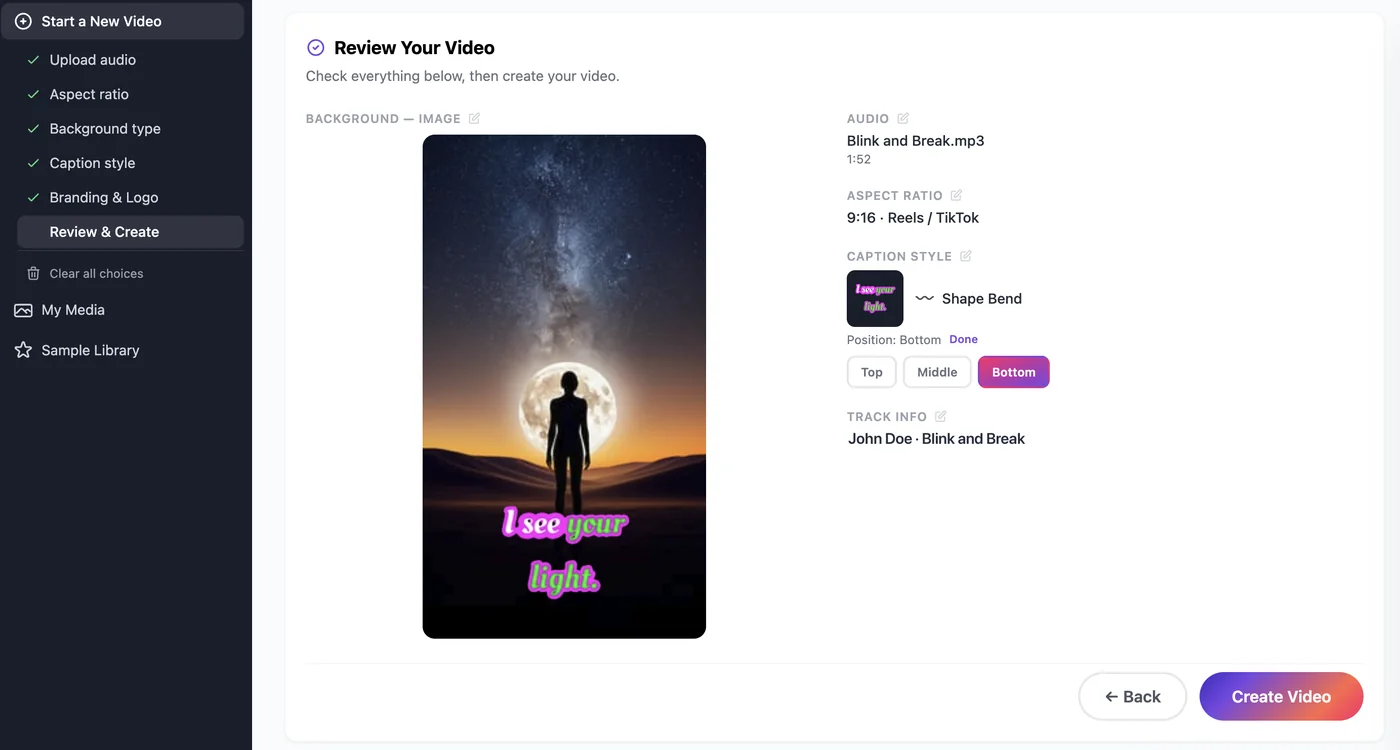
Check the Review & Create summary and press Create Video. LyricVue syncs the lyrics, adds your stock background and renders the video, usually within a few minutes.
Download the finished MP4 from My Videos.
Upload your song, browse the library and create your lyric video.
No credit card required