How to Make a Lyric Video From an Audio File

By LyricVue · Updated

Quick answer

Upload your MP3 or WAV to LyricVue, choose 9:16 for TikTok and Reels or 16:9 for YouTube, pick a background, choose a caption style and position, then press Create Video. LyricVue's AI transcribes the lyrics and times every word to the music, so there is nothing to type or sync by hand.

What you need

  • ✓An MP3 or WAV file of your song (from your recording software, Suno, Udio, ElevenLabs or anywhere else)
  • ✓A Google account to sign in (no credit card needed)
  • ✓About 5 minutes of your time, plus a few minutes of rendering

The free plan includes 3 lyric videos of up to 2 minutes each, with a small LyricVue watermark. Paid options remove the watermark and allow longer songs. See the pricing page for current limits.

1Upload your audio

Open LyricVue, sign in with Google and start a new video. On the Upload Audio step, drag your MP3 or WAV file into the box or choose it from your computer.

LyricVue starts transcribing the vocals as soon as the file is uploaded. If your MP3 has embedded cover art, LyricVue uses it as the default background image, which you can change later.

Songs longer than your plan's limit are trimmed to that limit. Free videos are up to 2 minutes.
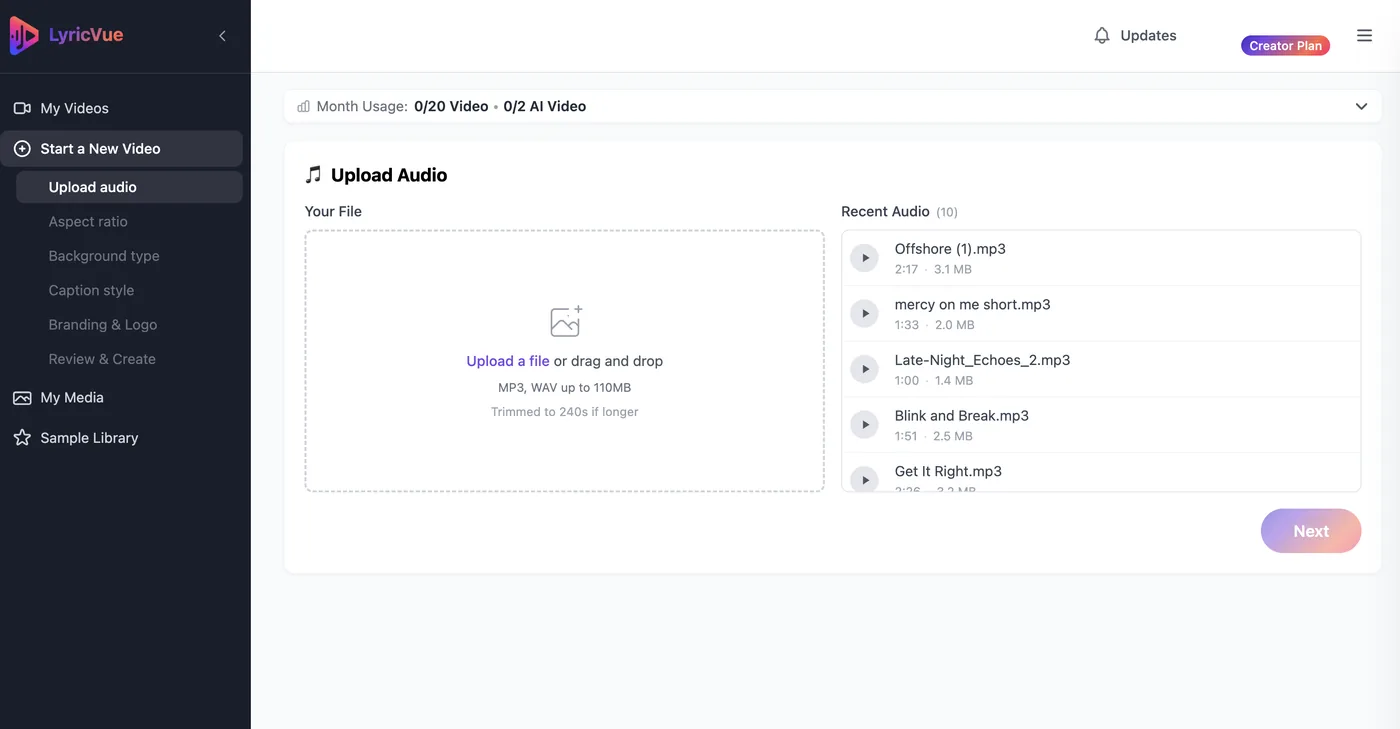
LyricVue Upload Audio step with a drag-and-drop box and a list of recent audio files
The Upload Audio step: drag in an MP3 or WAV, or pick a recent file. The limit shown here is for a Creator plan; free videos are up to 2 minutes.

Tip: Upload the cleanest version of the song you have. Clear vocals with little background noise give the most accurate lyrics.
2Choose your aspect ratio

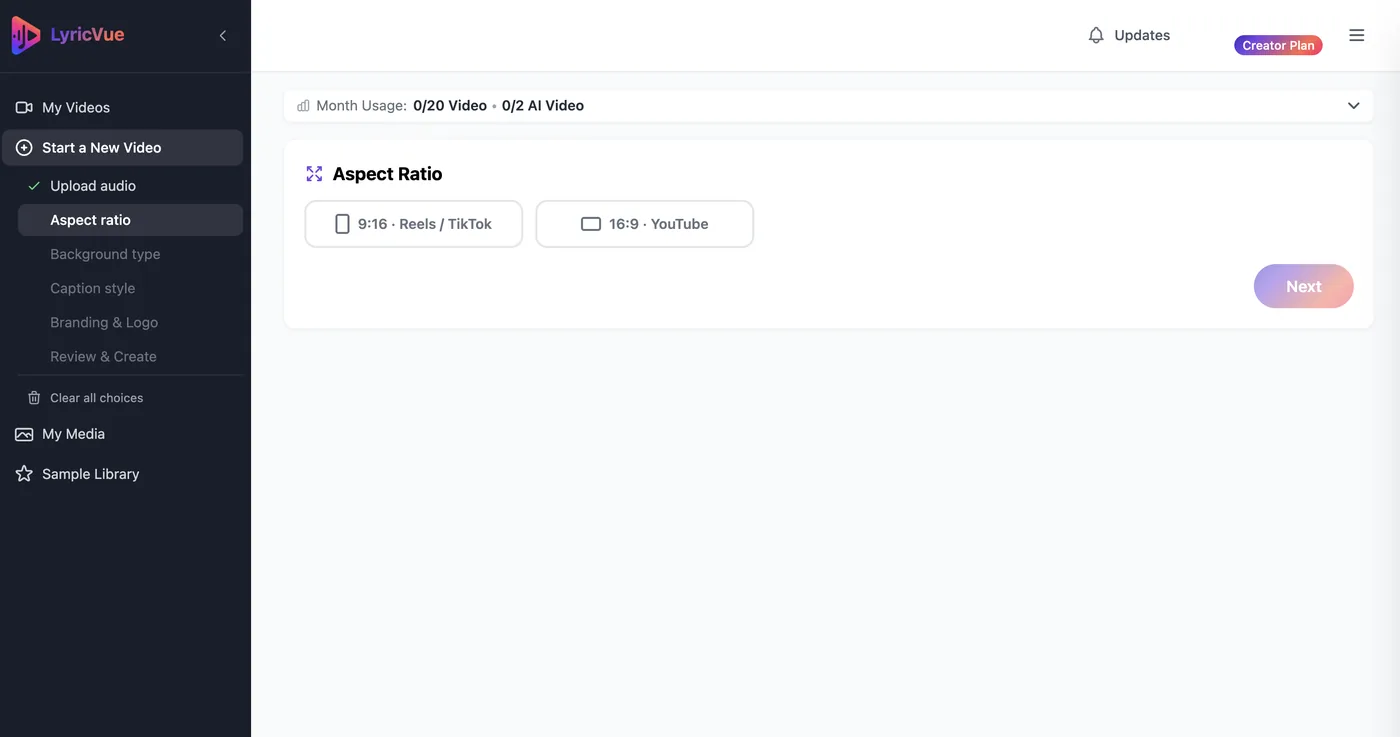
Pick 9:16 for vertical video (TikTok, Instagram Reels, YouTube Shorts) or 16:9 for widescreen video (regular YouTube uploads).

You can make both: render the same song twice, once in each ratio, if you plan to post on several platforms.

LyricVue Aspect Ratio step with 9:16 Reels / TikTok and 16:9 YouTube options
The Aspect Ratio step: 9:16 for Reels, TikTok and Shorts, or 16:9 for YouTube.

3Pick a background

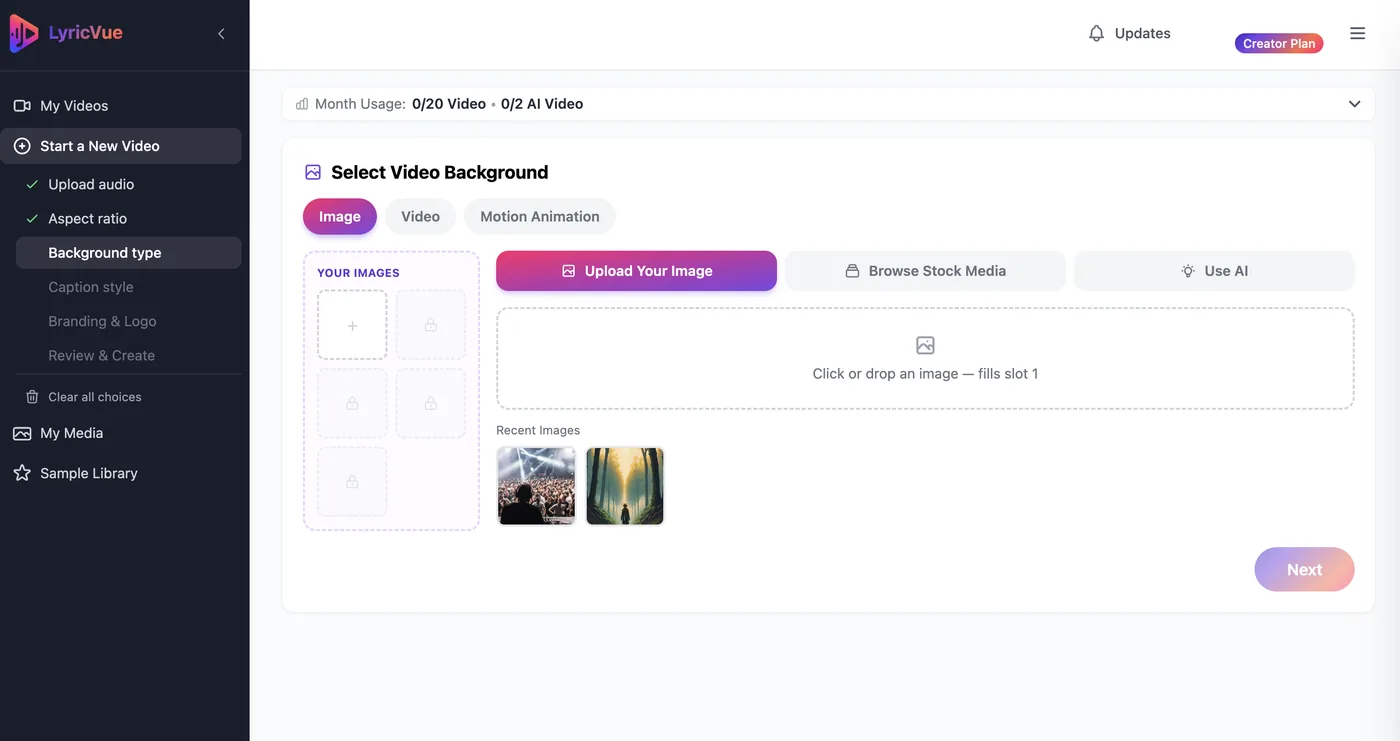
The Background step has three tabs: Image, Video and Motion Animation. Under Image you can choose how to get your picture: Upload Your Image, Browse Stock Media, or Use AI.

Each route has its own guide: use your own image or album art, browse the stock media library, or let AI generate the visual from your lyrics or your own prompt.

Video works the same way with video clips, and Motion Animation offers animated backgrounds that need no image at all.

LyricVue Background step with the Image tab and the Upload Your Image option selected
Background step, Image tab, Upload Your Image. Creator plans get one image slot; Studio and above get up to five.

Tip: Not sure? Start with Use AI and the Auto Prompt option. It builds the picture from your lyrics and needs no input from you.

4Select a caption style and position

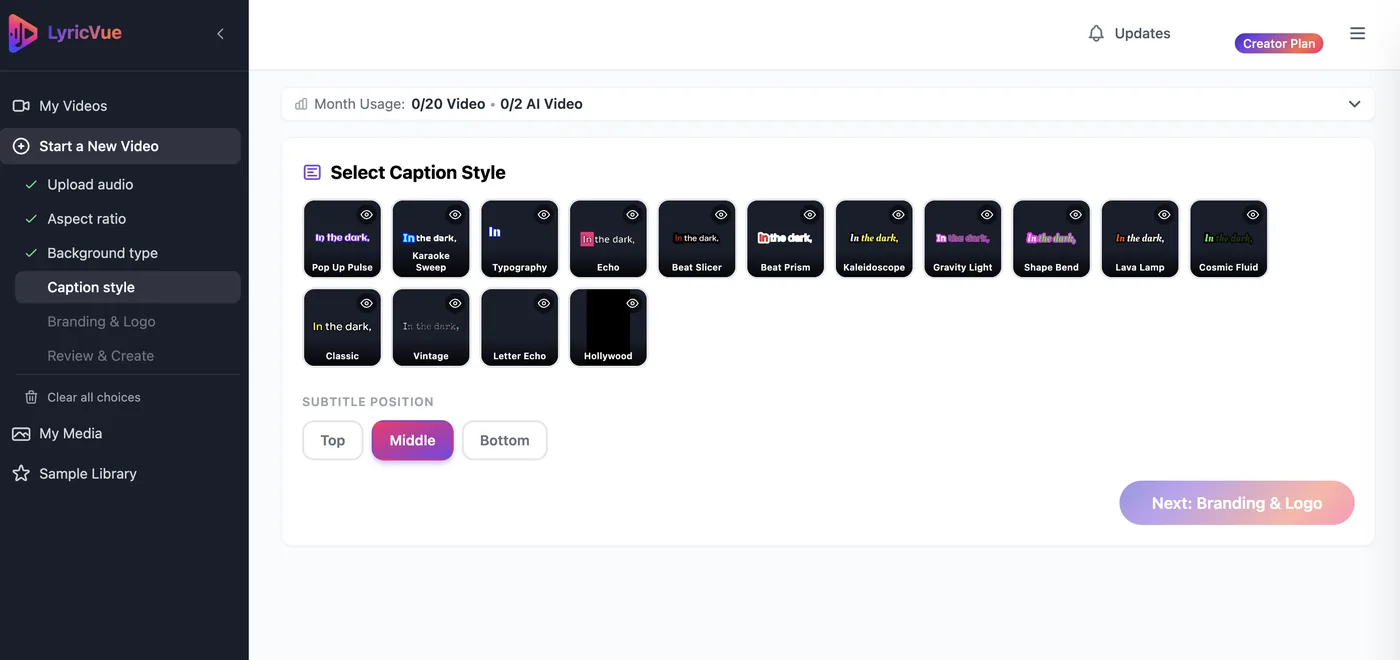
On the Caption Style step, pick one of the style previews. Each shows how your lyrics will animate: word-by-word highlighting, bold pop-ins, cinematic fades and more.

Then choose where the lyrics sit: Top, Middle or Bottom. Some styles come with their own fixed layout and do not offer a position choice.

LyricVue Select Caption Style step with a grid of caption styles and Top, Middle and Bottom position buttons
The Caption Style step: pick a style, then choose Top, Middle or Bottom.

Tip: For TikTok and Reels, the middle usually works best, because the top and bottom edges are covered by app buttons and captions.

5Add track info (optional)

Add your song title and artist name here for caption styles that display them. Studio and Director plans can also add their own logo here.

If you do not need it, continue to the last step.

6Review and press Create Video

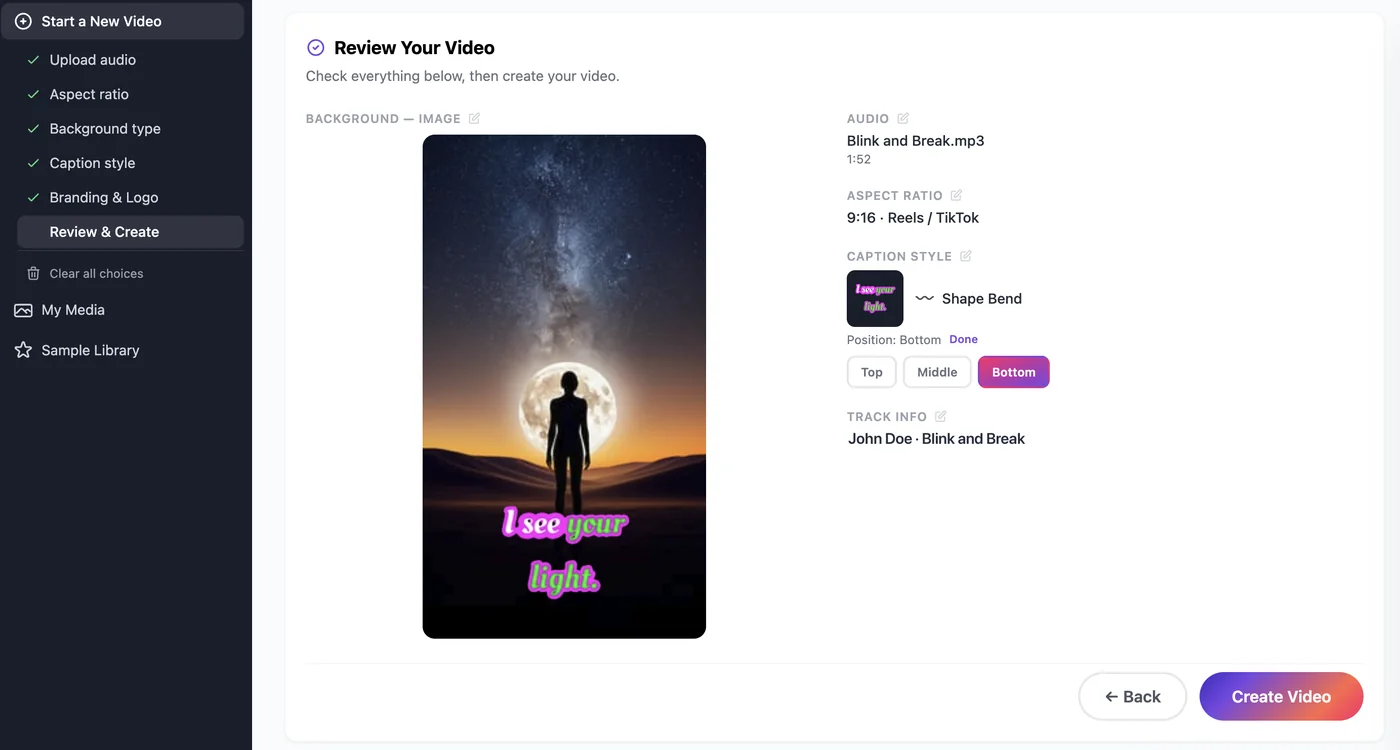
The Review & Create page summarizes your audio, aspect ratio, background and caption style. Check it, then press Create Video.

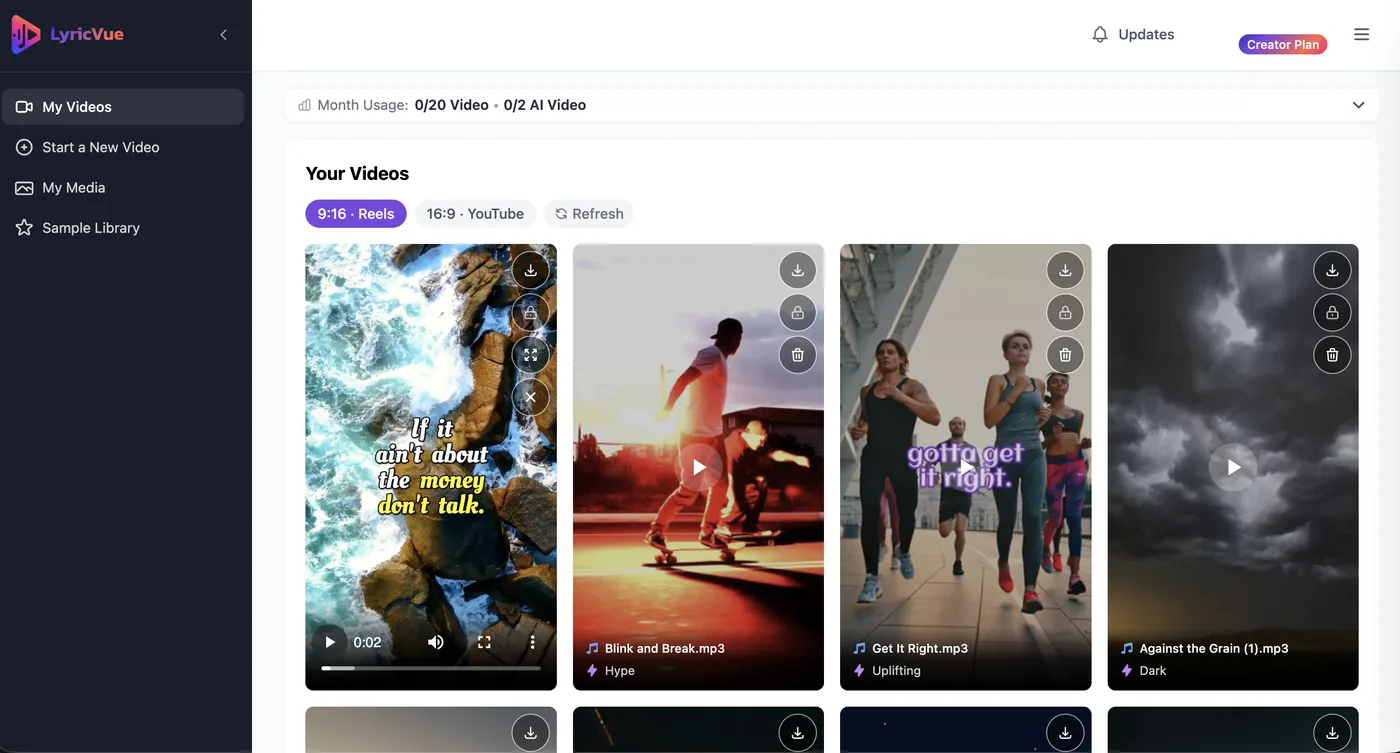
LyricVue transcribes, analyzes the beat and renders the video in the cloud, usually within a few minutes. You can follow the progress and download your finished MP4 from My Videos. Upload it directly to TikTok, Reels, Shorts or YouTube.

LyricVue Review Your Video step summarizing the audio, aspect ratio, caption style and background, with a Create Video button
Review & Create: check the summary, then press Create Video.
LyricVue My Videos page showing finished lyric videos with download buttons
Your finished videos appear in My Videos, where you can play and download them.

Frequently asked questions

Make Your First Lyric Video Free

Upload a song and follow the steps above. Three videos on us.

No credit card required